
How to Use FLUX 3 Max: Your First Clip in Any Mode
Step-by-step guide to making your first 5 to 20 second FLUX 3 Max video with sound in text-to-video, image-to-video, or keyframes mode.
On this page6 sections
To make your first clip on FLUX 3 Max, pick one of the three studio tabs (Text, Image, or Keyframes), keep the default 5 s and 720p settings (180 credits, covered once you combine the 60 Google sign-up credits with 120 from a 7-day check-in), write a 1 to 3 sentence prompt naming motion and sound, and press Generate.
Before you start: sign-in, credits, and file limits
You can browse examples and load prompts into the studio before signing in. When you sign up with Google, new accounts get 60 free credits (no card needed). Checking in 7 days in a row adds 120 more credits (12, 12, 24, 12, 12, 12, 36), which together equal 180 credits - one 5-second clip at 720p (36 credits/s). Check-in credits expire after 14 days, while sign-up and purchased credits do not. Email-code sign-in creates an account without the 60-credit sign-up grant.
If you upload photos, keep them in JPEG, PNG, or WebP format under 20 MB per image. Every uploaded image and prompt passes an automatic safety check before running, uploaded frames are deleted about 1 day later, and finished MP4 files stay in My videos for 30 days.
1Mode 1: Text to video
Text to video is the fastest way to test a concept because you do not need to prepare any images first.
- Pick the Text tab and set your framingLeave Ratio on Auto for 16:9 landscape, or switch to 9:16 for vertical social clips, 1:1 for square, or 21:9 for widescreen.
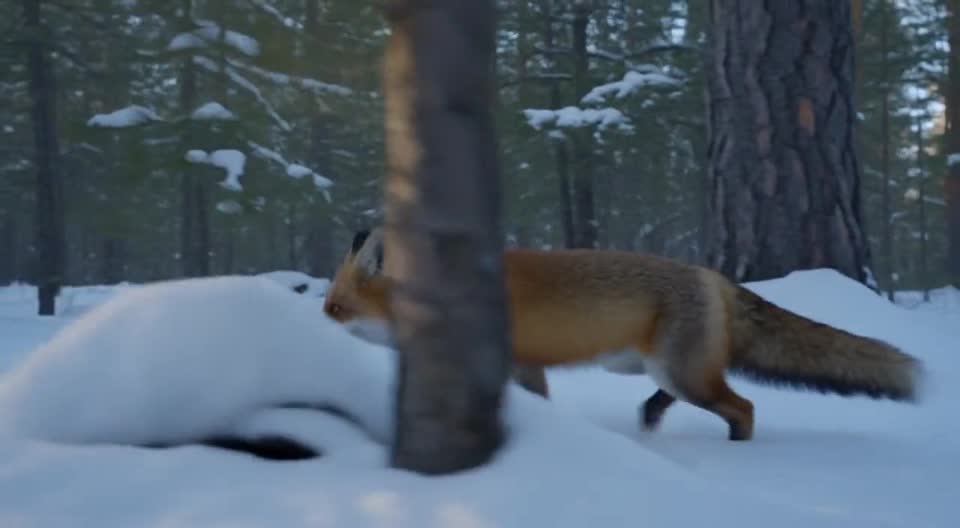
- Write 1 to 3 concrete sentencesName the subject, what moves, how the camera moves, and what the clip should sound like. For example, our tested snow fox clip used: “A red fox trots through fresh powder snow between pine trees, its breath visible in the cold air, the camera tracks alongside at ground level. Snow crunching under its paws and a light wind in the branches.”
- Keep Sound on (or switch it off)Native audio is enabled by default. Toggle Sound off if you are making silent B-roll like our ink-in-water clip (10 s wait time).
- Press Generate and wait 15 to 35 seconds for 5 s clipsAcross our November 3 runs, 5-second 720p clips returned in 10 to 34 seconds (median 17 s).
2Mode 2: Image to video (and optional last frame)
Image mode uses your photo as the exact first frame. Adding a second photo into the Last frame slot turns it into a controlled start-to-end transition.

Because the model already sees your first photo, spend your prompt words on what changes rather than describing every object already visible in the picture:
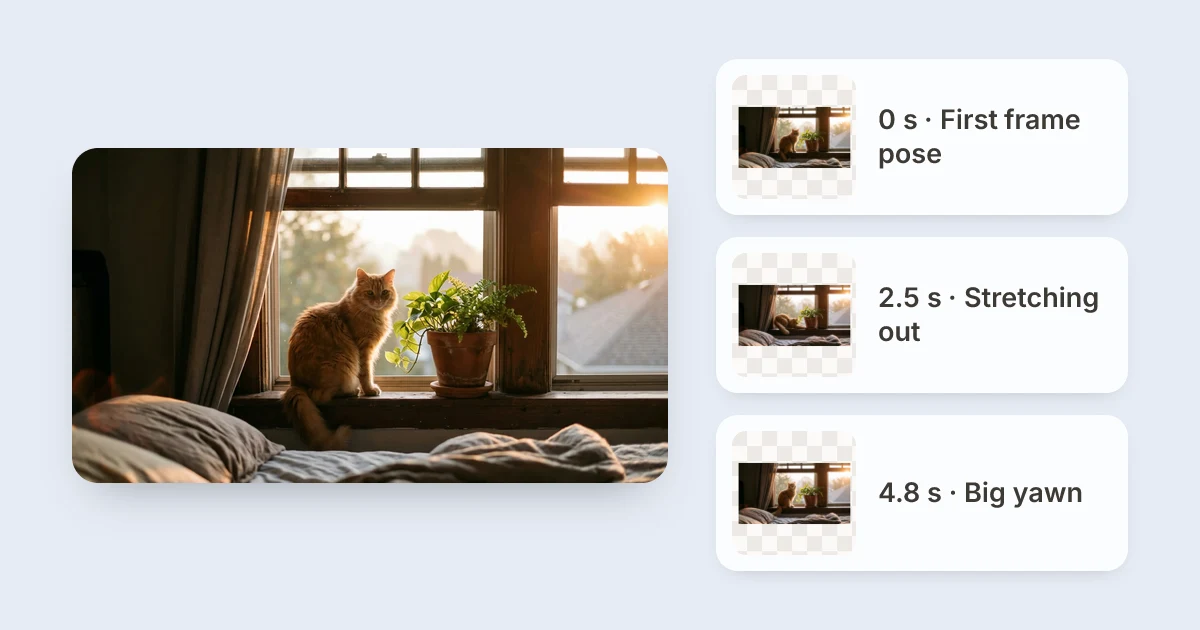
The ginger cat stretches, opens its mouth in a big yawn and flicks its tail, morning light shifting across its fur. Soft purring and a bird singing outside.
With Ratio on Auto, the video inherits the aspect ratio of your first uploaded image. For example, uploading a 9:16 café illustration automatically produces a 9:16 clip without cropping. For tips on preparing a second frame that transitions cleanly, read how to make a matching last frame.
3Mode 3: Keyframes to video
When a single photo is too open-ended and two frames are not enough to hit a middle beat, switch to the Keyframes tab.
- Add 2 to 10 imagesDrop your PNG, JPEG, or WebP frames into the studio tray.
- Place them on the timelineDrag thumbnails or nudge with arrow keys in 0.5 s steps (24 fps).
- Describe the bridgeWrite how the scene transforms between each pinned beat plus the sound.
- Generate at same rateKeyframes cost the exact same 36 credits/s (720p) or 62 credits/s (1080p).
If you change the clip duration after placing keyframes, the studio automatically rescales every marker proportionally to the nearest free half-second so frame counts stay valid from start to finish at 24 fps. See our detailed walkthrough in keyframe timing for AI video.
Which mode should you pick first?
- You are testing motion ideas quickly with your 60 starter credits and daily check-ins
- You want the model to invent the camera ending naturally
- You only have a scene description or one sharp reference still
- A client or storyboard requires an exact ending composition
- You are animating a multi-stage reveal (day to sunset to night, closed to open)
- You want to stop mid-clip drift on longer 8 to 10 second sequences
Pick Text, Image, or Keyframes, check the live credit readout beside Generate, and build your first 5-second video with sound.

FAQ
How do I get free credits on Flux3Max?
Click Get started and choose Continue with Google. New accounts created with Google receive 60 free credits with no credit card required, and checking in 7 days in a row earns 120 more (180 total, covering one 5-second 720p clip with sound). Check-in credits expire after 14 days, and email-code sign-in does not include the 60-credit sign-up grant.
Does Image mode or Keyframes mode cost more than Text mode?
No. All three modes cost 36 credits per second at 720p and 62 credits per second at 1080p, calculated strictly from output duration and resolution.
What image formats and file sizes can I upload?
You can upload JPEG (.jpg), PNG (.png), or WebP (.webp) files up to 20 MB each. Files are verified by their image bytes and screened automatically before generation.
How long does it take to generate a video?
In our recorded runs, 5-second 720p clips finished in 10 to 34 seconds (median 17 seconds), while 15-second and 20-second clips took around 100 seconds. Keyframes jobs on fal took 62 to 115 seconds including queue time.
What if a connection drops while my clip is generating?
A browser timeout does not mean the job failed. Finished clips are saved automatically in My videos for 30 days, and any job that genuinely fails on fal refunds your credits automatically.